Material Information Dialog
Outline
Creates material information, or lets you view or modify the material information items that have been entered.
How to open
- Click the
Materialbutton in the Insert tab > Entity group of the ribbon menu. - Double-click the
Materialitem in the Project Explorer. - Double-click the
Materialitem in the Workspace.
Dialog layout
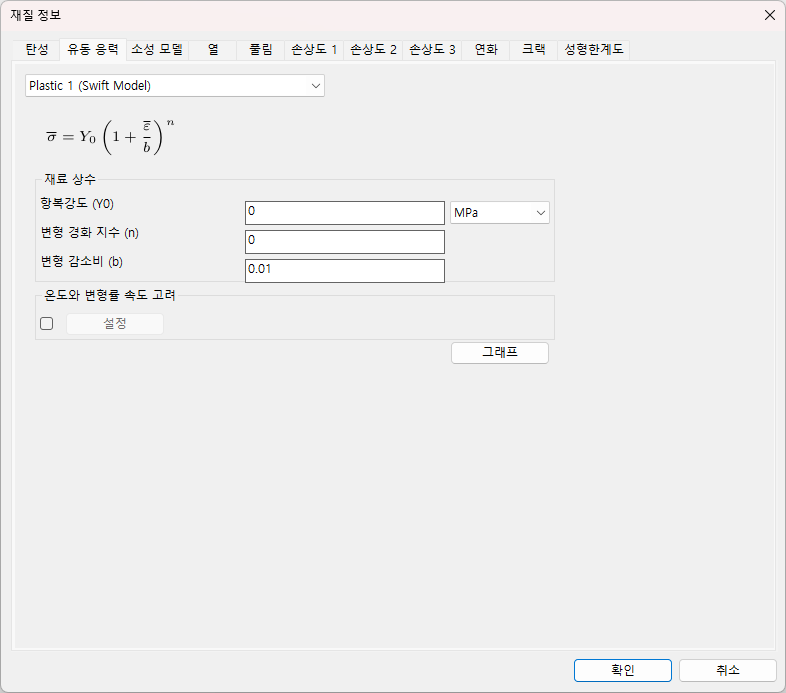
Elastic tab
The tab in which the elastic properties of the material (Young's modulus, Poisson's ratio, thermal expansion coefficient, density) are entered.
Dialog layout
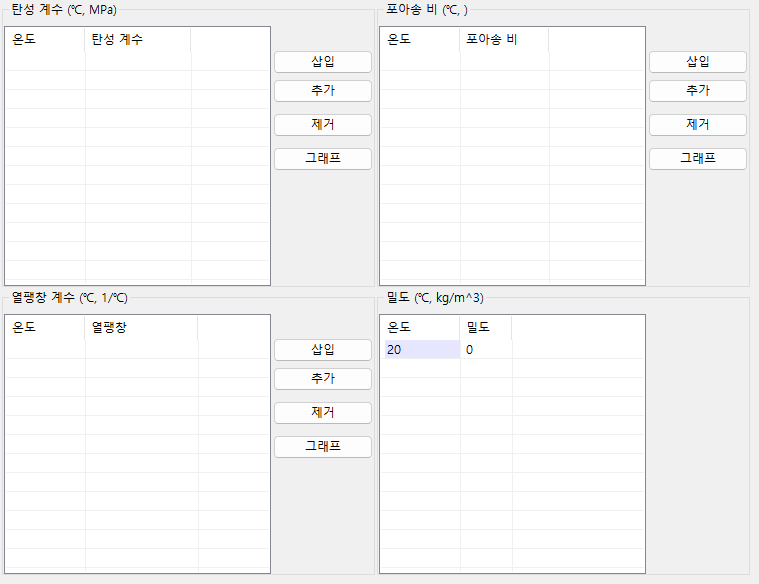
Input data
Young's modulus
Enter the Young's modulus as a function of temperature in the list.
Poisson's ratio
Enter the Poisson's ratio as a function of temperature in the list.
Thermal expansion coefficient
Enter the thermal expansion coefficient as a function of temperature in the list.
Density
Enter the density at room temperature.
The following applies to Young's modulus, Poisson's ratio and thermal expansion coefficient alike.
Insert- Inserts new data in front of the row selected in the list. If no row is selected, the data is added at the very top.Add- Adds new data after the row selected in the list. If no row is selected, the data is added at the very end.Remove- Removes the row selected in the list. Does nothing if no row is selected.Graph- Opens a dialog that plots the values of the list as a graph.
How to use
The following applies to Young's modulus, Poisson's ratio and thermal expansion coefficient alike.
- Click the
InsertorAddbutton to add arow. - Click the added row to change a value; an
edit boxbecomes active. - Enter the value in the
edit box.
Flow stress
Select the flow stress model from the combo box.
Flow stress model 1
A modified version of the Swift model.
Flow stress data can be generated with AFDEX_MAT from tensile test data.
Dialog layout
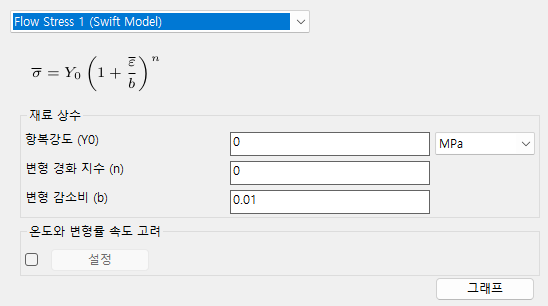
Input data
Yield strength- Enter theyield strengthof the material.Strain hardening exponent- Enter thestrain hardening exponentof the material.Strain reduction ratio- Enter thestrain reduction ratioof the material.Graph- Opens a dialog showing the flow stress graph.
Flow stress model 2
The C-m model.
Dialog layout
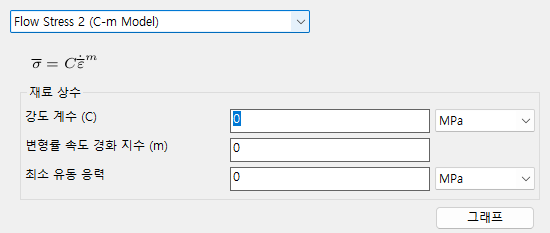
Input data
Strength coefficient- Enter thestrength coefficientof the material.Strain rate hardening exponent- Enter thestrain rate hardening exponentof the material.Minimum flow stress- Enter theminimum flow stressof the material.Graph- Opens a dialog showing the flow stress graph.
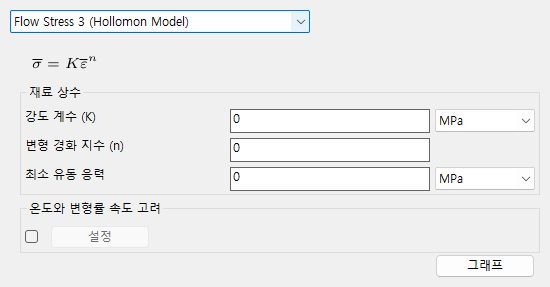
Flow stress model 3
The Hollomon model.
Flow stress data can be generated with AFDEX_MAT from tensile test data.
Dialog layout
Input data
Strength coefficient- Enter thestrength coefficientof the material.Strain hardening exponent- Enter thestrain hardening exponentof the material.Minimum flow stress- Enter theminimum flow stressof the material.Graph- Opens a dialog showing the flow stress graph.
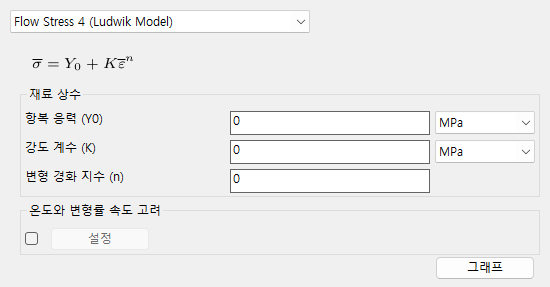
Flow stress model 4
The Ludwick model.
Flow stress data can be generated with AFDEX_MAT from tensile test data.
Dialog layout
Input data
Yield stress- Enter theyield stressof the material.Strength coefficient- Enter thestrength coefficientof the material.Strain hardening exponent- Enter thestrain hardening exponentof the material.Graph- Opens a dialog showing the flow stress graph.
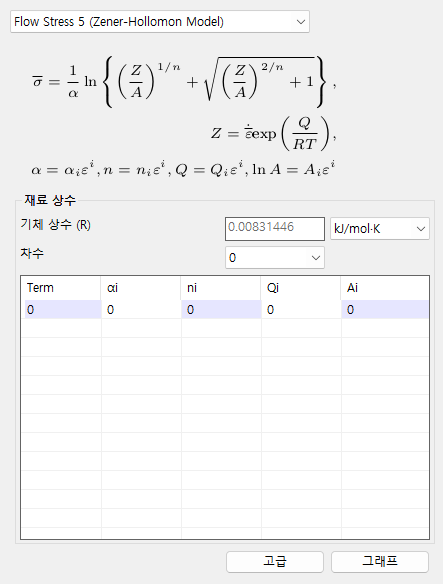
Flow stress model 5
The Zener-Hollomon model.
Dialog layout
Input data
Gas constant- A fixed value.Order- The order of the polynomials representing \(\alpha\), \(n\), \(Q\) and \(\text{ln}A\) (maximum 9)List- Double-click the position of the value to be changed in the list; anedit boxbecomes active. Enter the value in the activeedit box.Advanced- Opens the dialog for setting the variable ranges of the hot material information.Graph- Opens a dialog showing the flow stress graph.
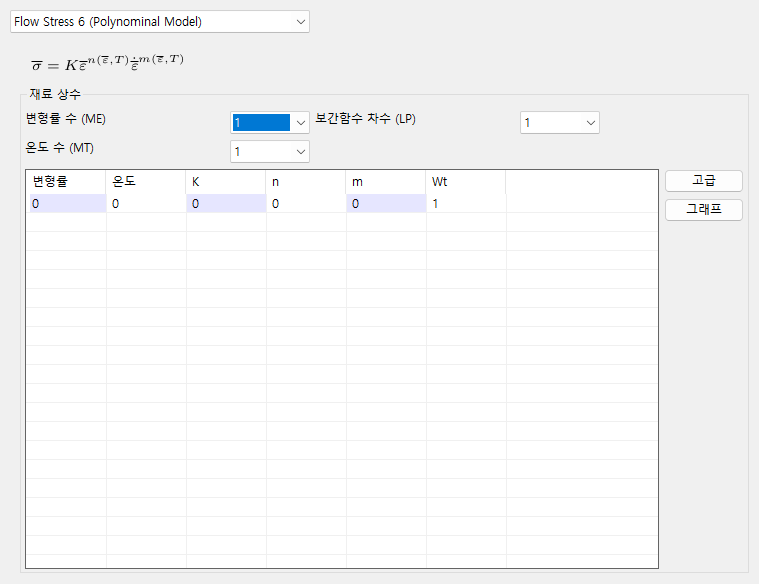
Flow stress model 6
The Polynomial model. \(K\), \(n\), \(m\) and \(wt\) are functions of strain and temperature.
The solver converts the list into a polynomial of order (LP) for the calculation.
Dialog layout
Input data
Number of strains- Select thenumber of strains. (maximum 20)Number of temperatures- Select thenumber of temperatures. (maximum 20)Order of interpolation function- Select theorder of the interpolation function. (maximum 3)List- Double-click the position of the value to be changed in the list; anedit boxbecomes active. Enter the value in the activeedit box.Advanced- Opens the dialog for setting the variable ranges of the hot material information.Graph- Opens a dialog showing the flow stress graph.
Flow stress model 7
The Piecewise Temperature model. \(K\), \(n\) and \(m\) are functions of temperature.
Dialog layout
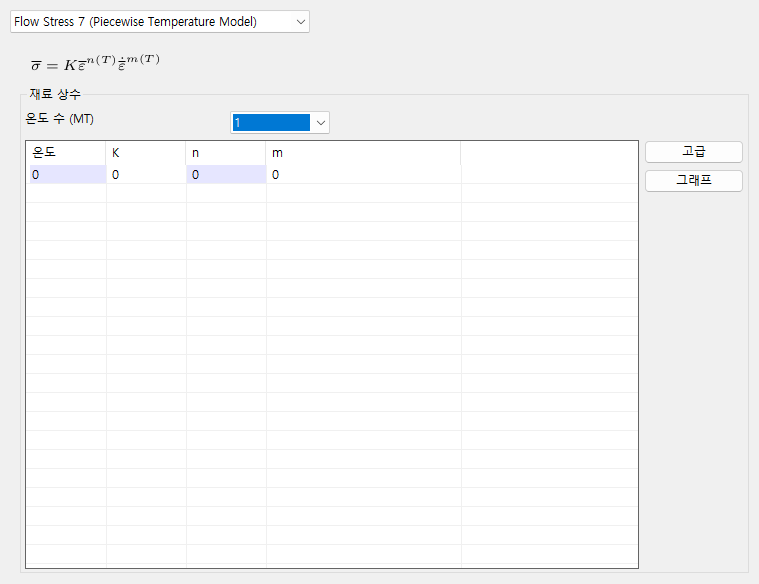
Input data
Number of temperatures- Select thenumber of temperatures. (maximum 20)List- Double-click the position of the value to be changed in the list; anedit boxbecomes active. Enter the value in the activeedit box.Advanced- Opens the dialog for setting the variable ranges of the hot material information.Graph- Opens a dialog showing the flow stress graph.
Flow stress model 8
The modified Hollomon model. \(K\) is a function of strain.
Flow stress data can be generated with AFDEX_MAT from tensile test data.
Dialog layout
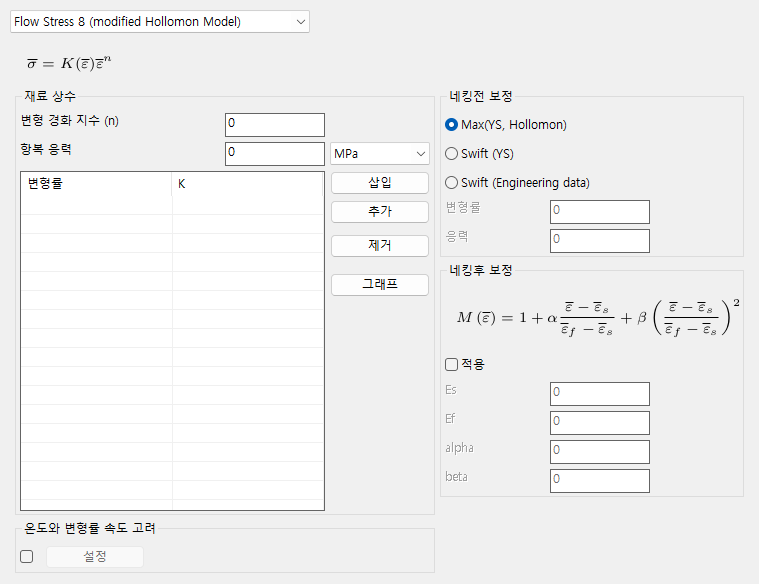
Input data
Strain hardening exponent- Enter thestrain hardening exponent.-
Yield stress- Enter theyield stress. -
List- Double-click the position of the value to be changed in the list; anedit boxbecomes active. Enter the value in the activeedit box. Insert- Inserts new data in front of the row selected in the list. If no row is selected, the data is added at the very top.Add- Adds new data after the row selected in the list. If no row is selected, the data is added at the very end.Remove- Removes the row selected in the list. Does nothing if no row is selected.Graph- Opens a dialog that plots a graph.
Flow stress model 9
The Misaka model.
The flow stress is obtained by entering the chemical composition (C, Mn, V, Mo, Ni). This model is taken from the Journal of the Japan Society for Technology of Plasticity (JSTP).
Dialog layout
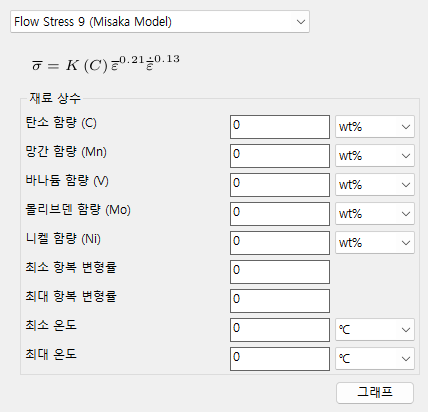
Input data
Carbon content- Enter thecarbon content.Manganese content- Enter themanganese content.Vanadium content- Enter thevanadium content.Molybdenum content- Enter themolybdenum content.Nickel content- Enter thenickel content.Minimum yield strain- Enter theminimum yield strain.Maximum yield strain- Enter themaximum yield strain.Minimum temperature- Enter theminimum temperature.Maximum temperature- Enter themaximum temperature.Graph- Opens a dialog that plots a graph.
Flow stress model 10
The Yield - Tensile Strength model.
When the yield strength and the tensile strength of the steel are entered, they are converted into the coefficients of the Hollomon model to obtain the flow stress. This model is taken from the Journal of the Japan Society for Technology of Plasticity (JSTP).
Dialog layout
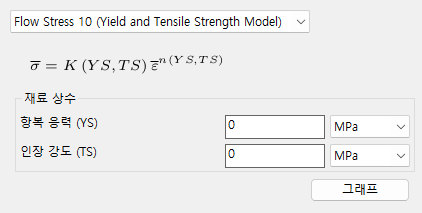
Input data
Yield stress- Enter theyield stress.Tensile strength- Enter thetensile strength.Graph- Opens a dialog that plots a graph.
Flow stress model 11
The point data model.
Enter the data of the true stress-strain curve.
Dialog layout
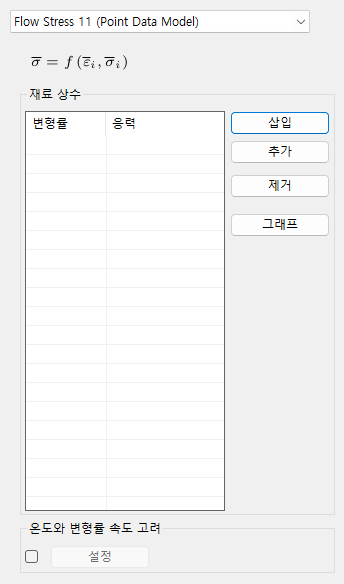
Input data
List- Double-click the position of the value to be changed in the list; anedit boxbecomes active. Enter the value in the activeedit box.Insert- Inserts new data in front of the row selected in the list. If no row is selected, the data is added at the very top.Add- Adds new data after the row selected in the list. If no row is selected, the data is added at the very end.Remove- Removes the row selected in the list. Does nothing if no row is selected.Graph- Opens a dialog that plots a graph.
Flow stress model 13
The Patchwise Temperature and Strain-rate model.
Dialog layout
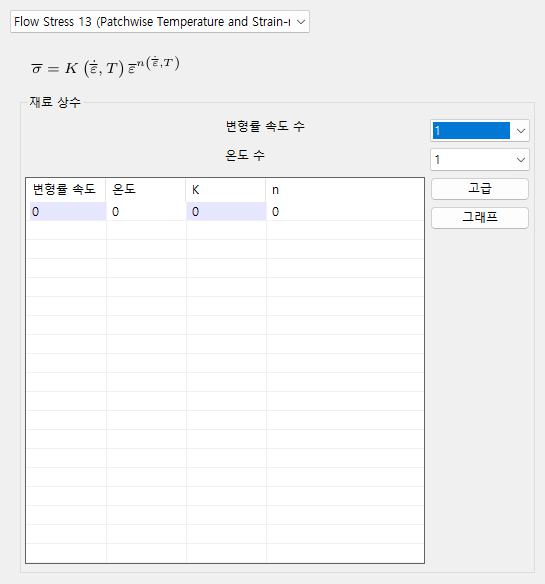
Input data
Number of strain rates- Select the number of strain rates used to represent \(K\) and \(n\).Number of temperatures- Select the number of temperatures used to represent \(K\) and \(n\).List- Double-click the position of the value to be changed in the list; anedit boxbecomes active. Enter the value in the activeedit box.Advanced- Opens the dialog for setting the variable ranges of the equation.Graph- Opens a dialog that plots a graph.
Flow stress model 13
The Patchwise Temperature and Strain-rate model.
Dialog layout
Input data
Number of strain rates- Select the number of strain rates used to represent \(K\) and \(n\).Number of temperatures- Select the number of temperatures used to represent \(K\) and \(n\).List- Double-click the position of the value to be changed in the list; anedit boxbecomes active. Enter the value in the activeedit box.Advanced- Opens the dialog for setting the variable ranges of the equation.Graph- Opens a dialog that plots a graph.
Flow stress model 16
The General Power Law model.
Dialog layout
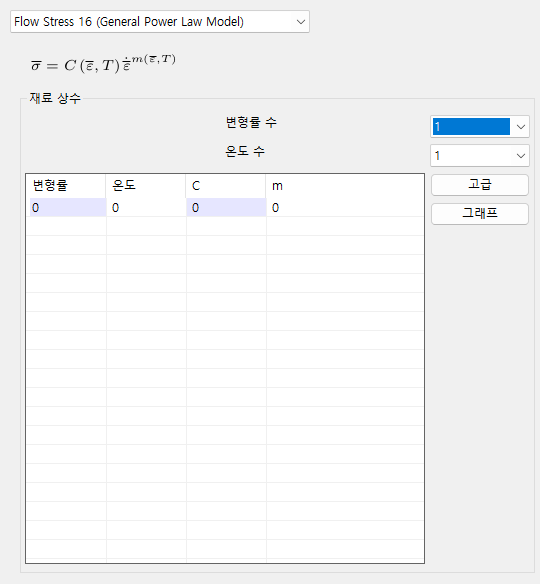
Input data
Number of strain rates- Select the number of strain rates used to represent \(C\) and \(m\).Number of temperatures- Select the number of temperatures used to represent \(C\) and \(m\).List- Double-click the position of the value to be changed in the list; anedit boxbecomes active. Enter the value in the activeedit box.Advanced- Opens the dialog for setting the variable ranges of the equation.Graph- Opens a dialog that plots a graph.
Flow stress model 170
The Hansel-Spittel model.
Dialog layout
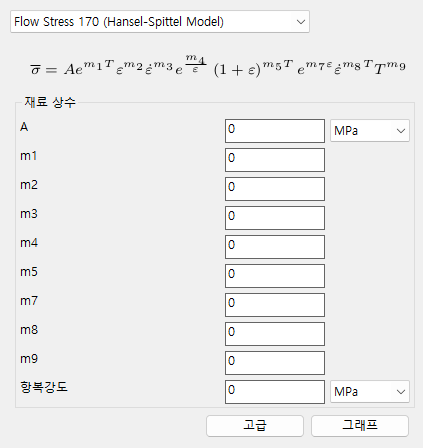
Input data
A- EnterA.m1- Enterm1.m2- Enterm2.m3- Enterm3.m4- Enterm4.m5- Enterm5.m7- Enterm7.m8- Enterm8.m9- Enterm9.Yield strength- Enter theyield strength.Advanced- Opens the dialog for setting the variable ranges of the equation.Graph- Opens a dialog that plots a graph.
Flow stress model 18
The Hansel-Spittel model.
Dialog layout
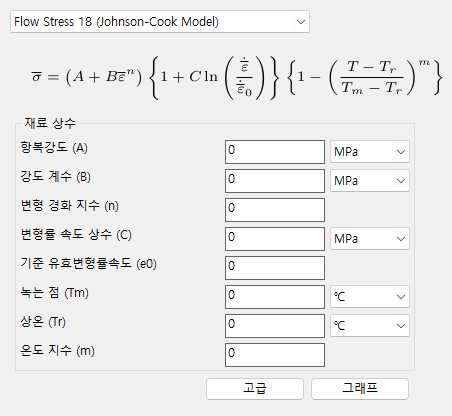
Input data
Yield strength- Enter theyield strength.Strength coefficient- Enter thestrength coefficient.Strain hardening exponent- Enter thestrain hardening exponent.Strain rate constant- Enter thestrain rate constant.Reference effective strain rate- Enter thereference effective strain rate.Melting point- Enter themelting point.Room temperature- Enter theroom temperature.Temperature exponent- Enter thetemperature exponent.Advanced- Opens the dialog for setting the variable ranges of the equation.Graph- Opens a dialog that plots a graph.
Consider temperature and strain rate
When this option is checked and the Setting button is clicked, the Cold material option dialog opens, in which the temperature and strain rate settings can be made.
Plastic model
Dialog layout
Input data
The plastic model is one of von-Mises / Hill 1948 / UMAT.
Hill 1948
UMAT

Source file- Shows the path of theumat.forfile.Compiler- Select the type ofFortrancompiler installed on the user's PC.User values- Passes 10 real numbers to thePROPSparameter ofSUBROUTINE UMAT.
      SUBROUTINE UMAT(STRESS,STATEV,DDSDDE,SSE,SPD,SCD,
     1 RPL,DDSDDT,DRPLDE,DRPLDT,
     2 STRAN,DSTRAN,TIME,DTIME,TEMP,DTEMP,PREDEF,DPRED,
     3 CMNAME,NDI,NSHR,NTENS,NSTATV,PROPS,NPROPS,
     4 COORDS,DROT,PNEWDT,CELENT,DFGRD0,DFGRD1,
     5 NOEL,NPT,LAYER,KSPT,KSTEP,KINC)
How to use
Source file- Click the...button on the right and select theumat.forfile.- After selecting the
Compiler, click theCheckbutton. - Enter the
User values. - Click the
Buildbutton. - Close the dialog, or enter data in another tab.
Cautions
Warning
...
Note
The Plastic model tab is enabled only when Material model is set to elasto-plastic in the Process Information dialog.