Install
License Manager Installation
Download
Installation
-
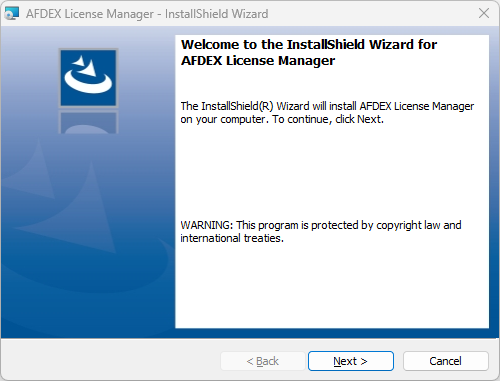
Unzip the downloaded file and run the
setup.exefile. -
Click the
Nextbutton.
-
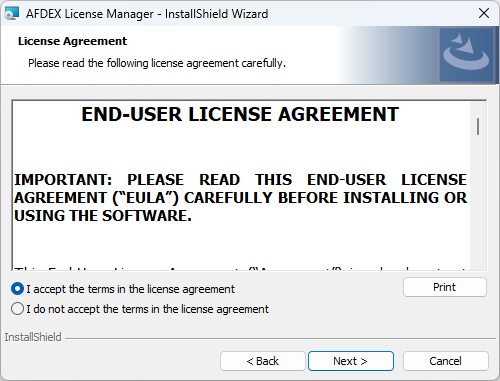
Select
I accept the terms in the license agreementand click theNextbutton.
-
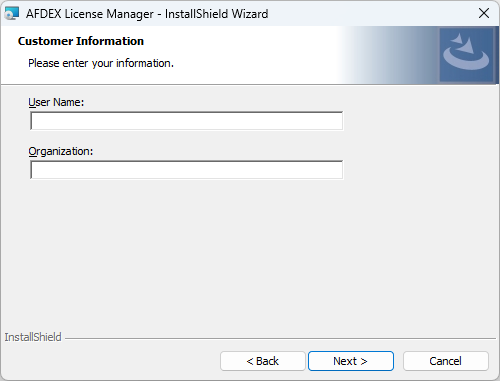
Enter the
User NameandOrganization, and click theNextbutton.
(User NameandOrganizationare optional.)
-
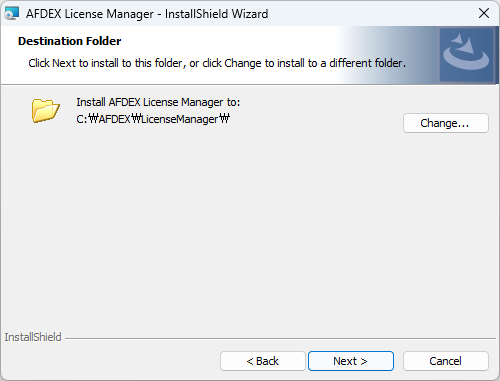
Click the
Nextbutton.
-
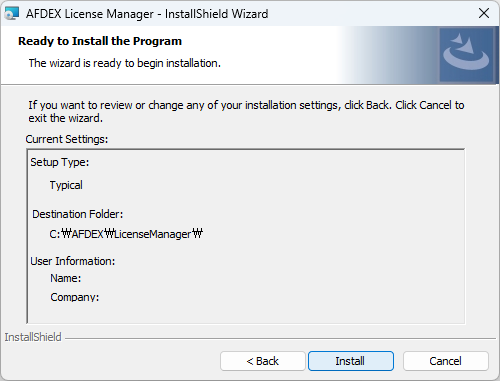
Click the
Installbutton.
-
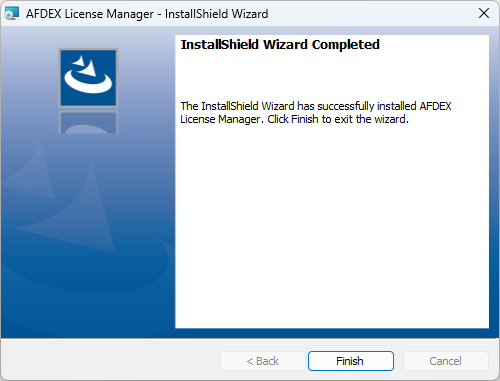
Click the
Finishbutton.
Configuration
-
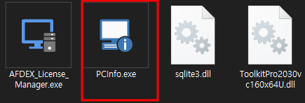
After completing LicenseManager Installation, open the [License Manager Installation Path]\Bin folder (C:\AFDEX\LicenseManager\Bin).
-
Run the
PCInfo.exeprogram.
-
Click the
Savebutton to save the information to a file, and click theClosebutton to close the program.
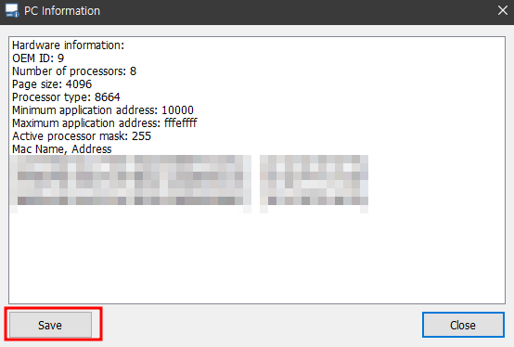
-
Send the file saved in step 3 (pcinfo.txt) to the place of purchase or MFRC (
mfrc@afdex.com). -
Once you receive the
afdex.licfile, place it in the [License Manager installation path]\License folder (C:\AFDEX\LicenseManager\License). -
Reboot.
AFDEX Installation
Download
Installation
- Unzip the Downloaded File and run the
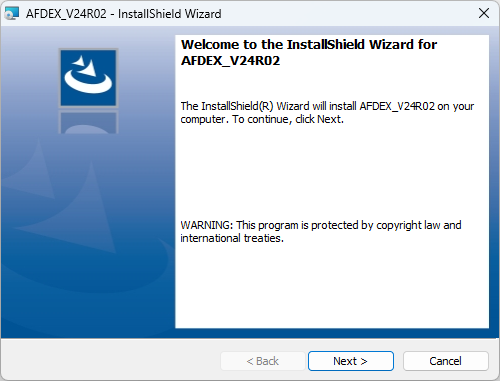
setup.exefile. - Click the
Nextbutton.
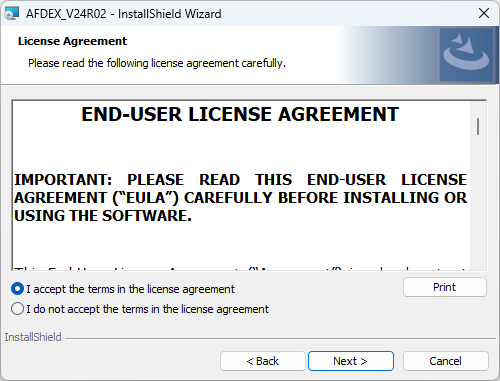
- Select
I accept the terms in the license agreementand click theNextbutton.
-
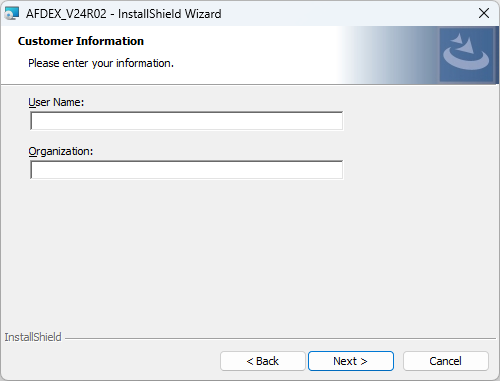
Enter
User NameandOrganization, and click theNextbutton.
(User NameandOrganizationare optional.)
-
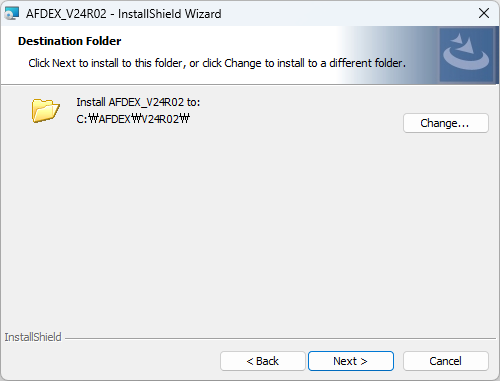
Click the
Nextbutton.
-
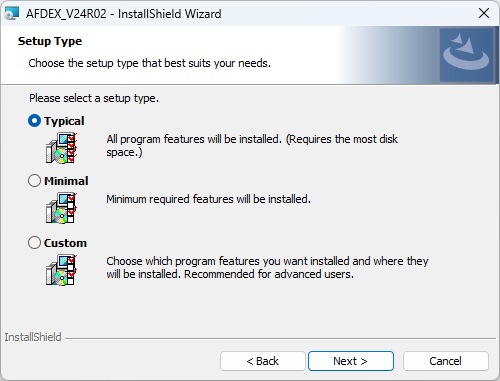
Click the
Nextbutton.
-
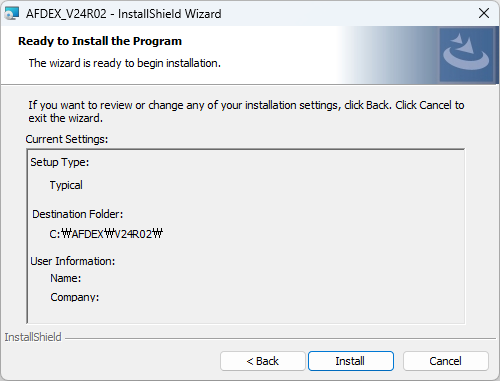
Click the
Installbutton.
-
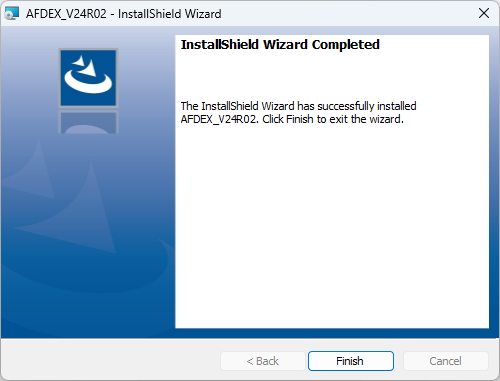
Click the
Finishbutton.
Configuring the License Server
-
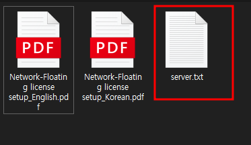
After AFDEX Installation Complete, navigate to the [AFDEX Installation Path]\License folder.
Open the Server.txt file.
-
By default, 127.0.0.1:7529 is entered.
(No modification needed if your PC is the server) -
Enter the information in the format Server PC ip:port and save it. The port number is 7529 by default; if the port is changed on the Server PC, the Client PC must also be updated accordingly.
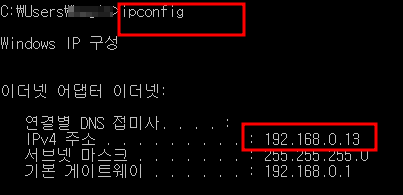
3-1. Click the Windows Start button on the Server PC (or type 'win' on the keyboard)
3-2. Type cmd and run Command Prompt
3-3. When the DOS window appears, type ipconfig and press Enter
3-4. Note down the IPv4 address and write it down on the client PC